Connect FinancialReports to Claude.
A custom MCP (Model Context Protocol) connector that lets Claude search filings, look up companies, and pull Markdown directly from the FinancialReports index. Set up in under 2 minutes.
- A Claude account at claude.ai — Pro, Team, or Enterprise plan required for connectors.
- An active Analyst or Enterprise FinancialReports subscription. View plans →
https://mcp.financialfilings.com/mcp
The URL must end in /mcp. Copy from the field above to guarantee the exact format.
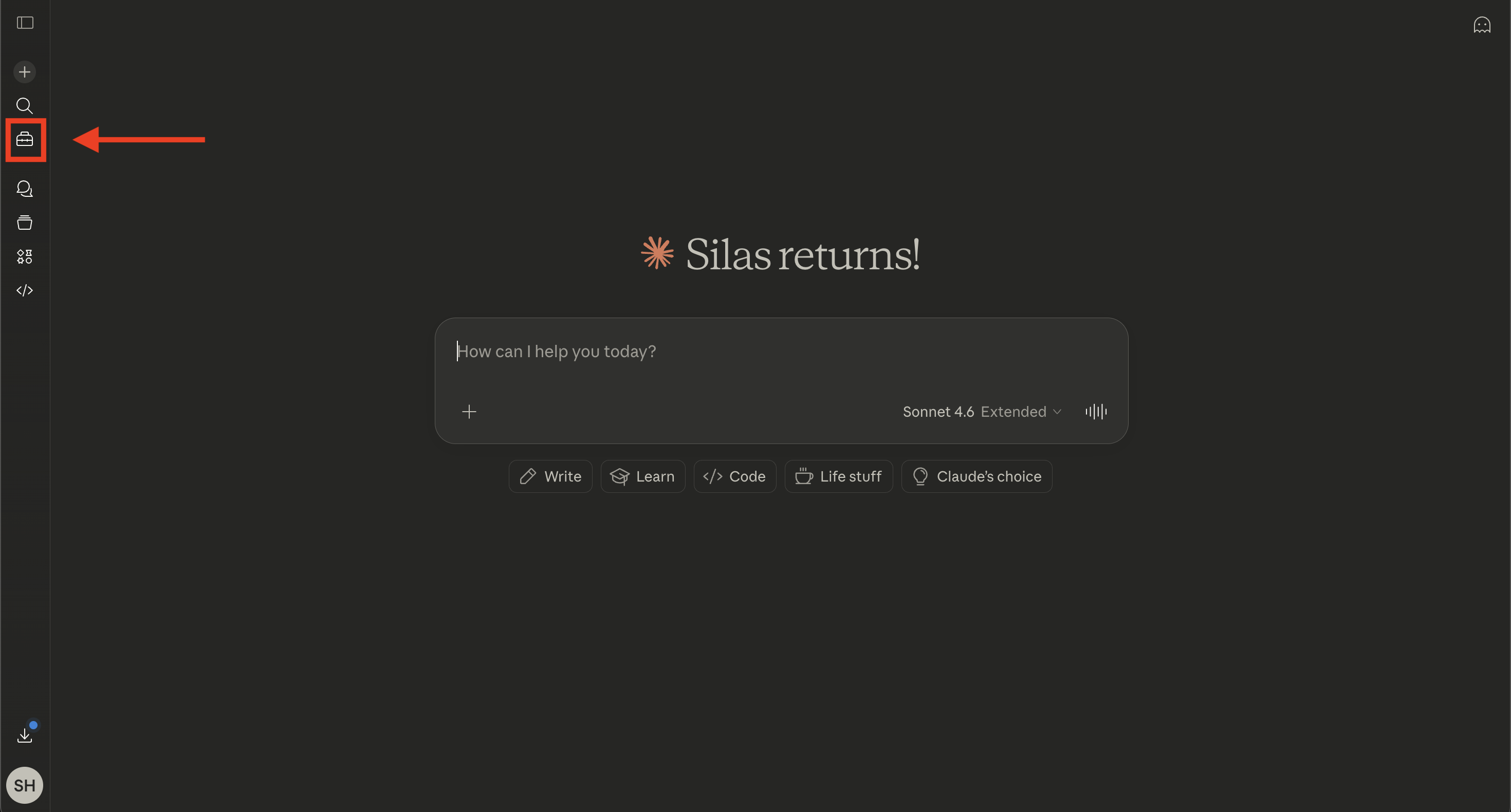
Open the Customize panel.
Go to claude.ai and sign in. Click the suitcase icon in the left sidebar to open the Customize panel.
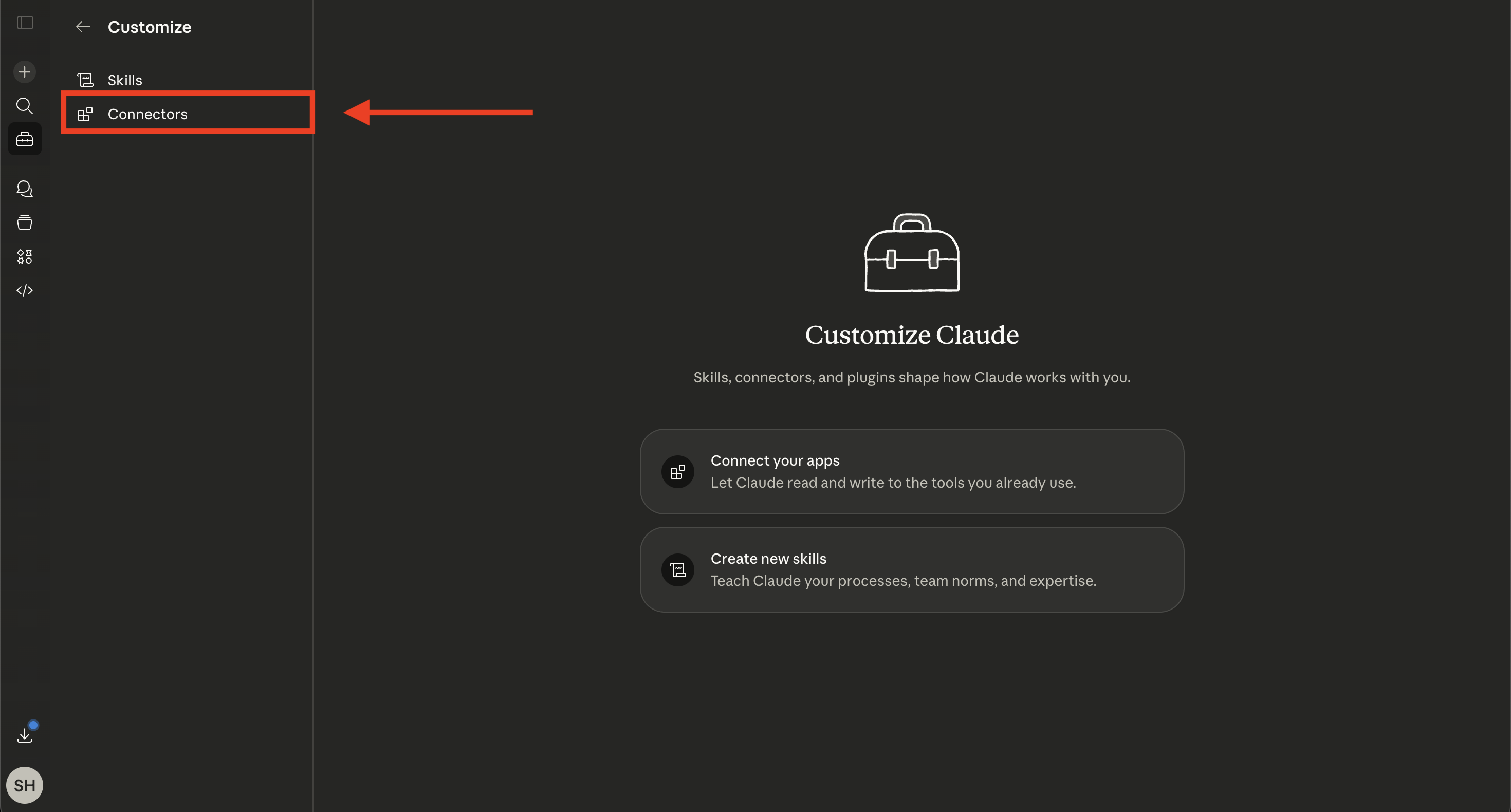
Select Connectors.
In the Customize panel, click Connectors in the left sub-menu.
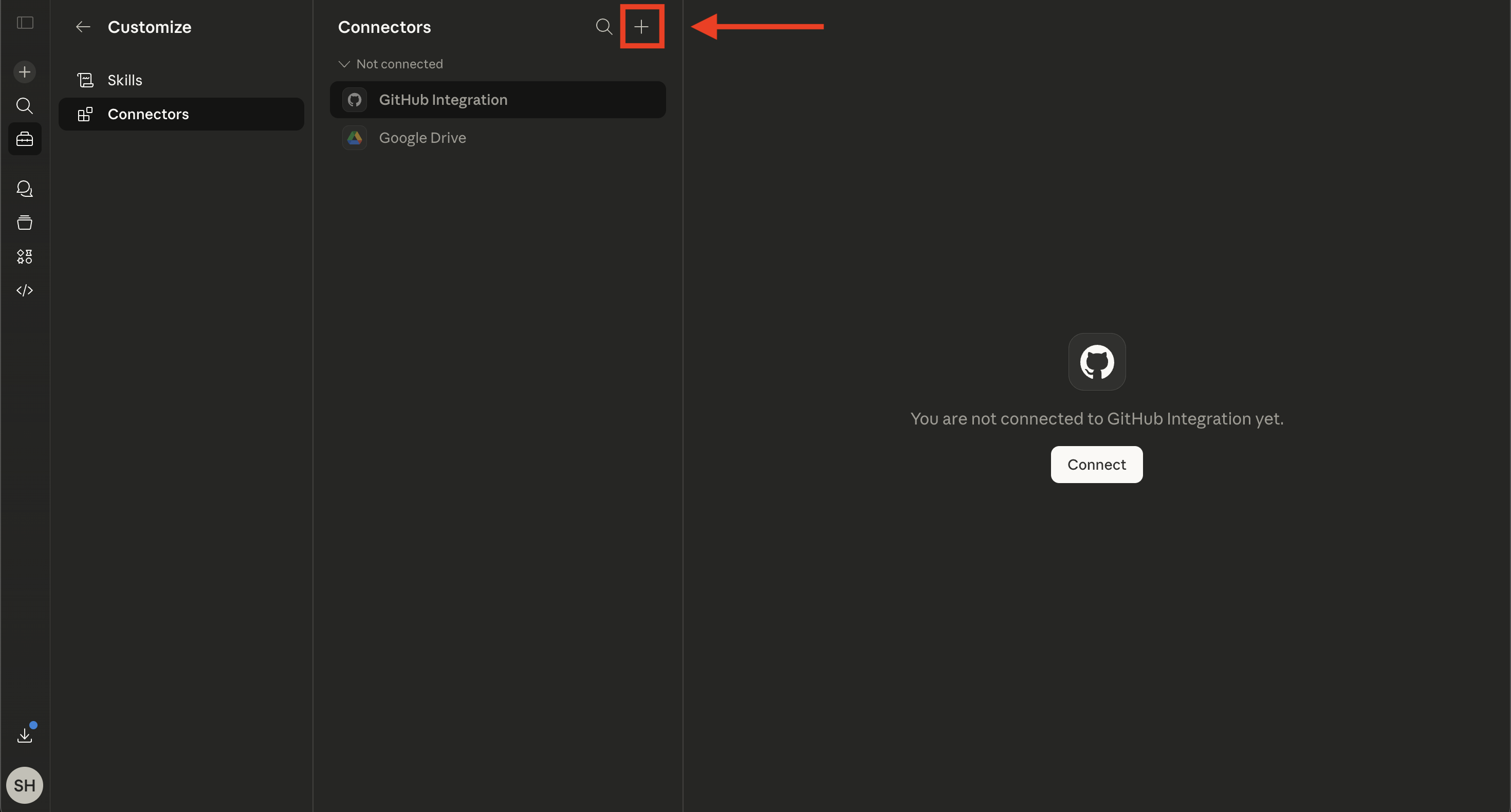
Add a new connector.
Click the + button in the top-right corner of the Connectors panel.
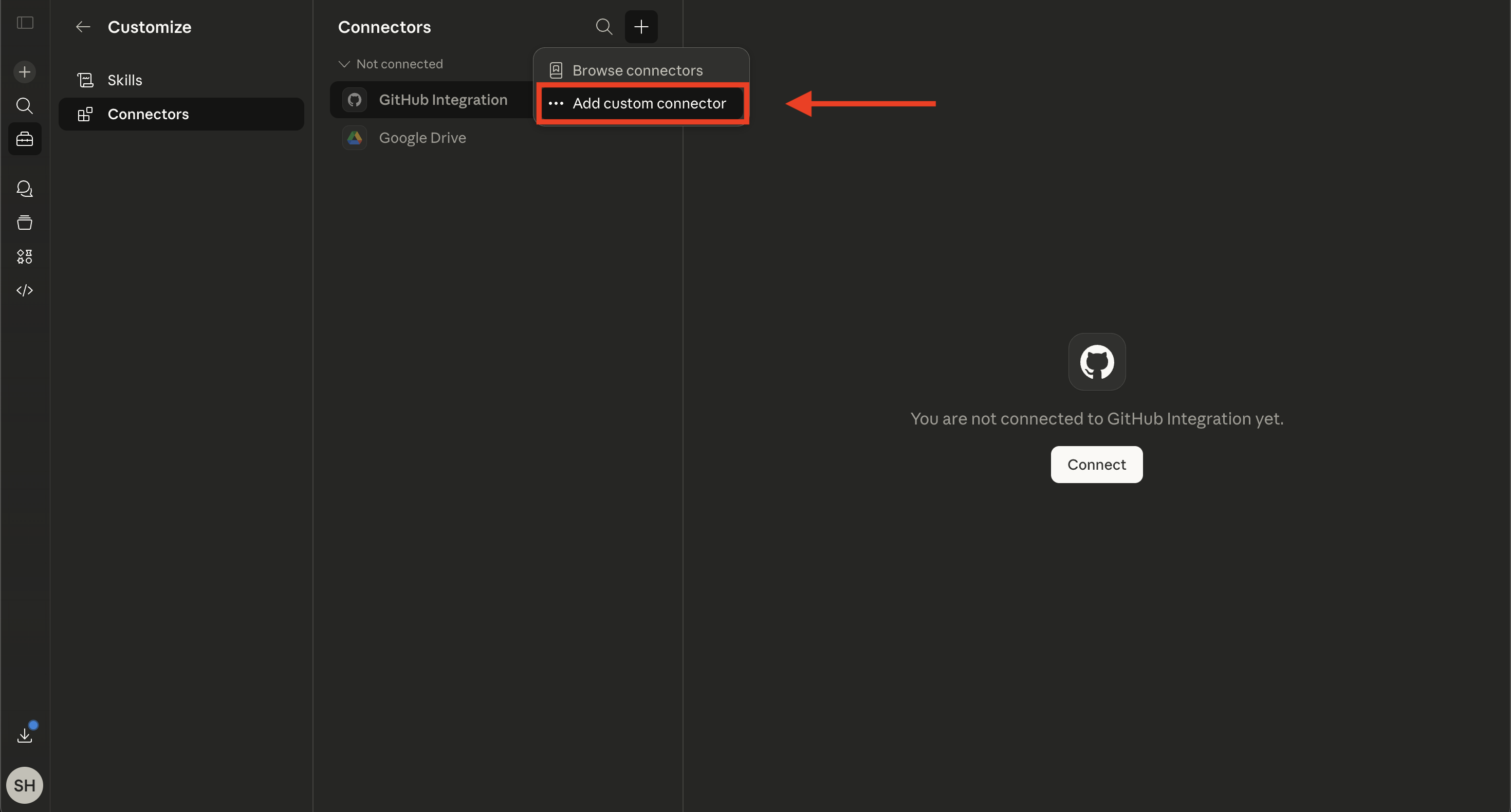
Select Add custom connector.
A small dropdown appears. Click Add custom connector.
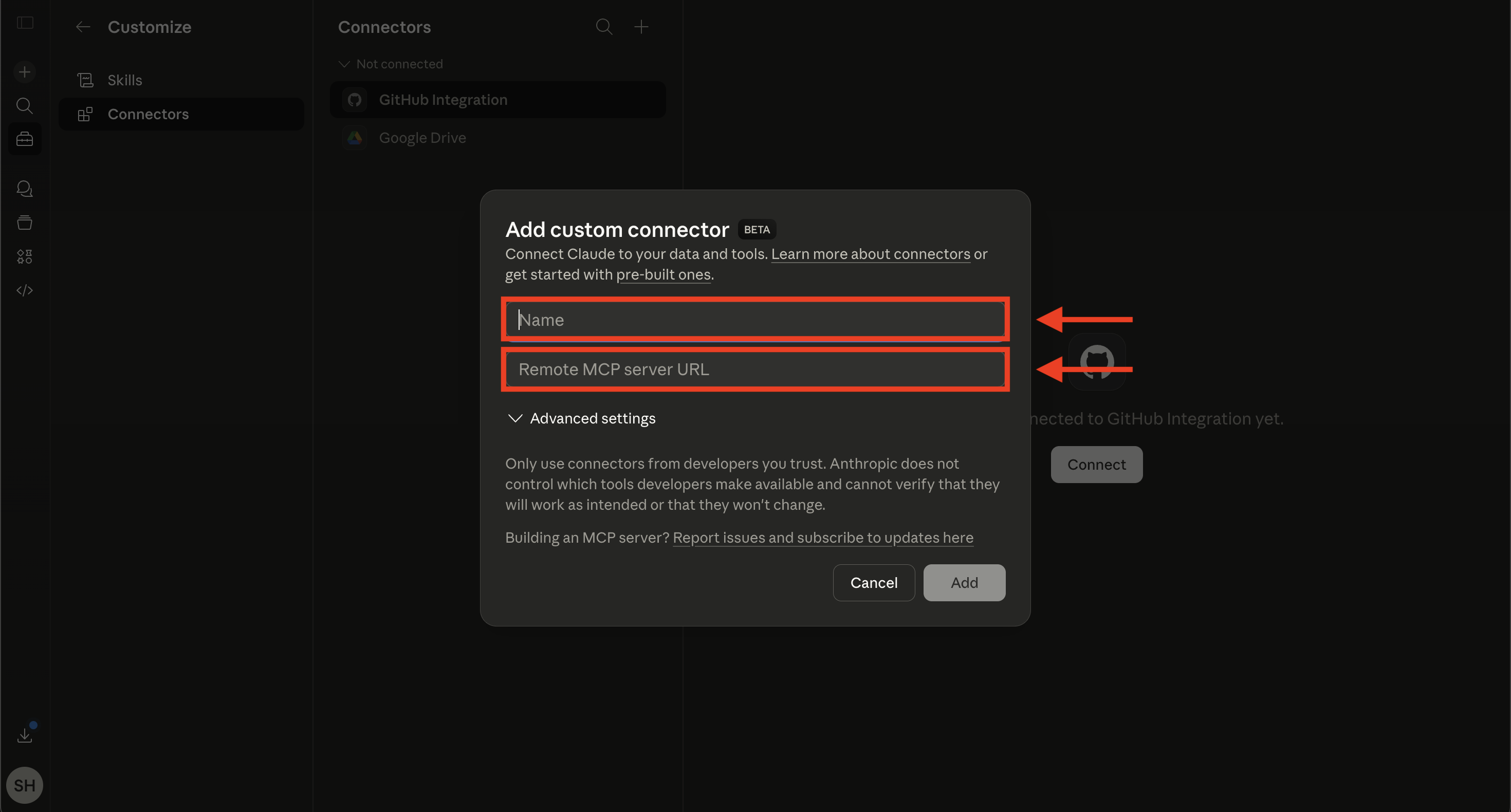
Enter the connection details.
In the dialog that appears, fill in the two fields:
- Name:
- Anything you like, e.g.
FinancialReports - URL:
https://mcp.financialfilings.com/mcp
The URL must end in /mcp — without it, Claude will not connect.
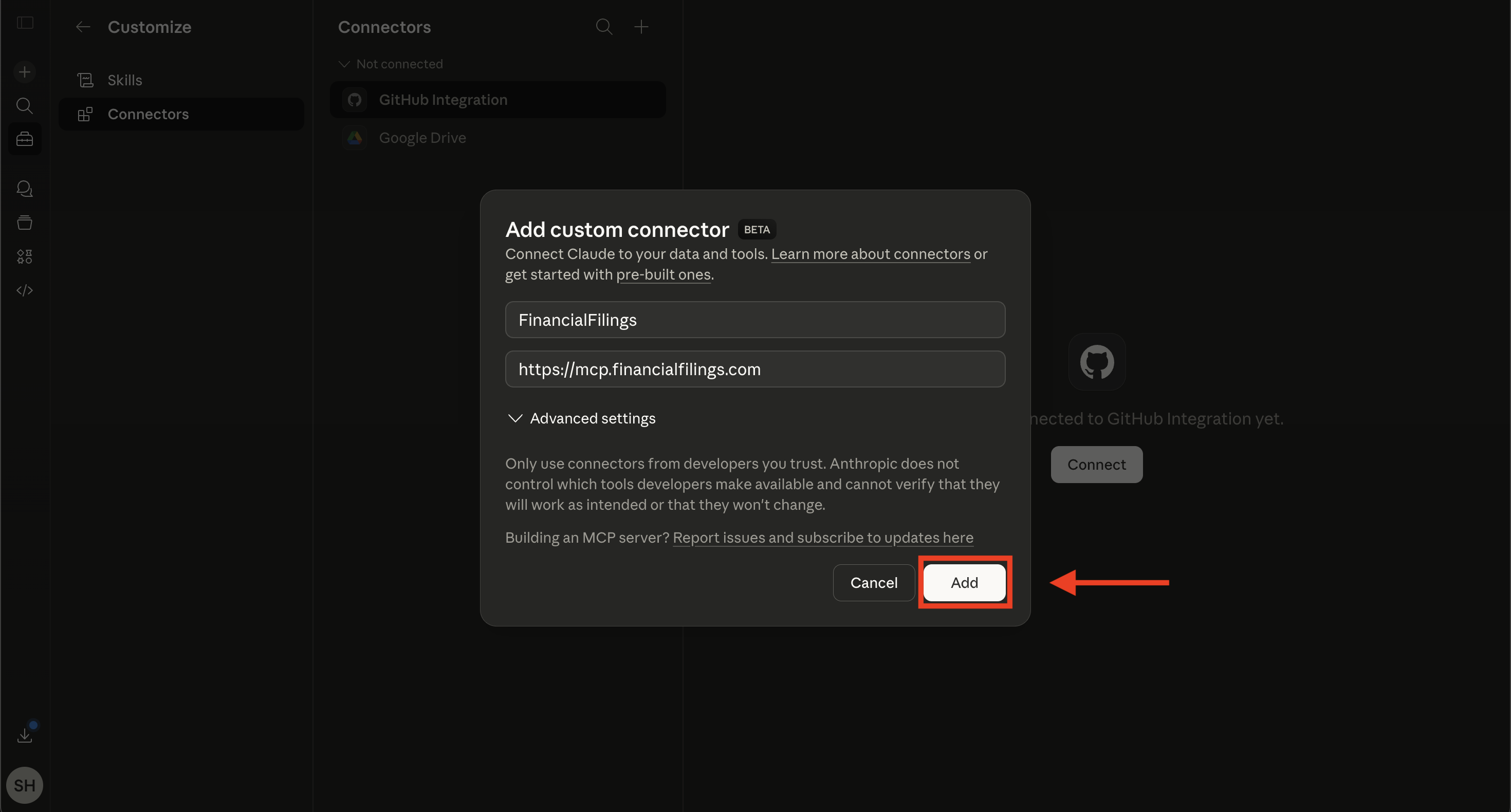
Click Add to save the connector.
Connect and authenticate.
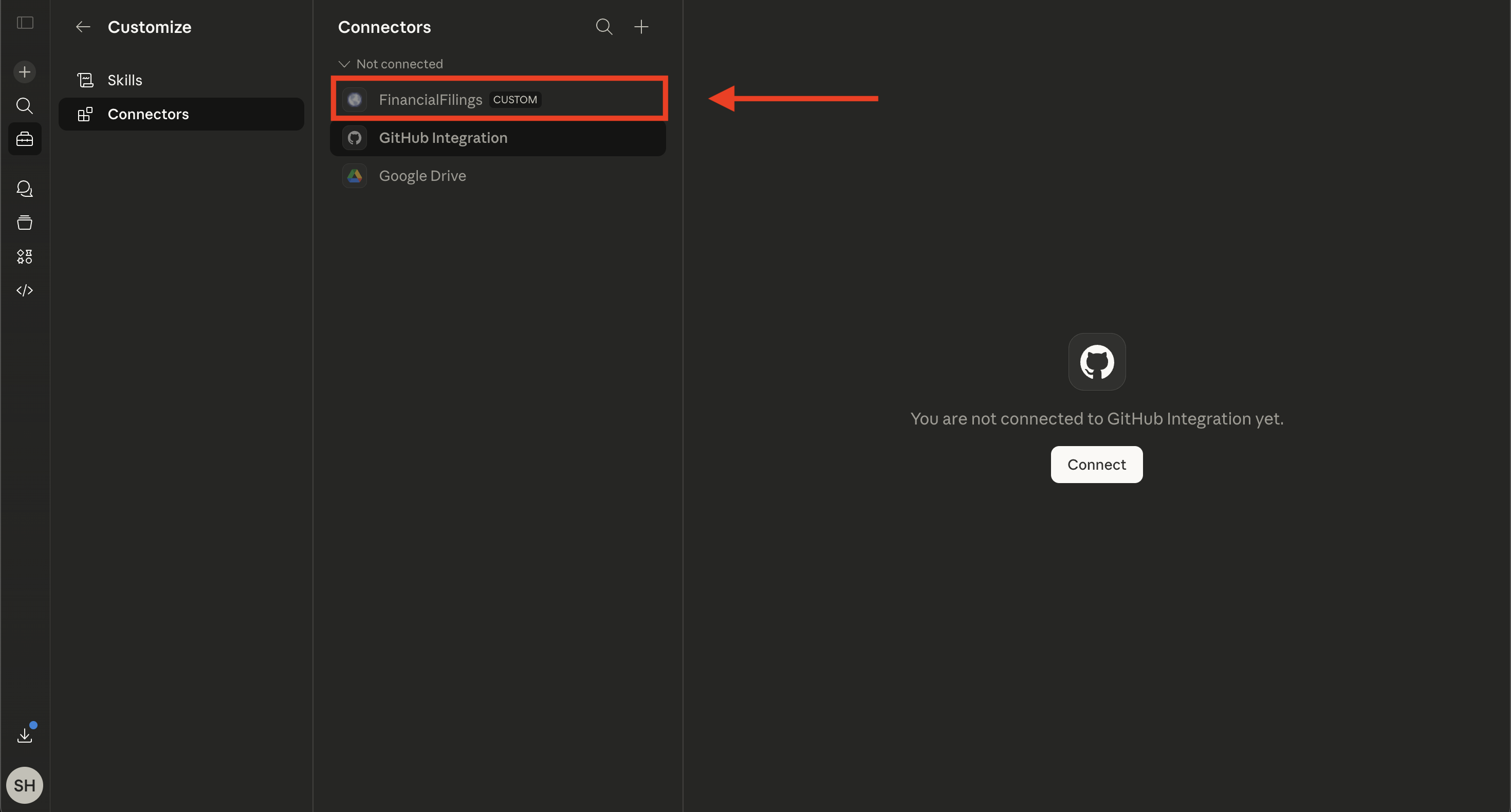
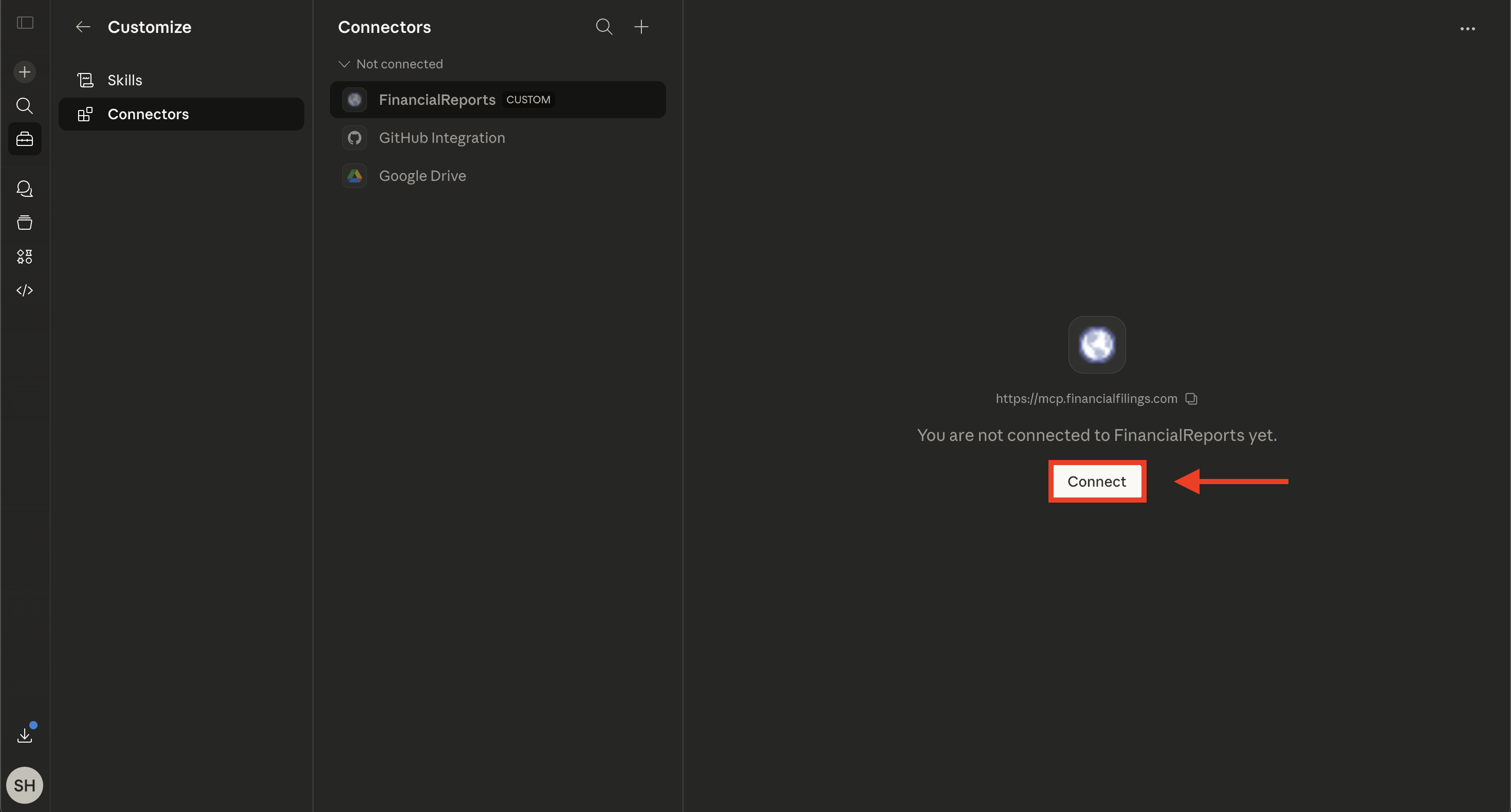
You will see the new connector in your list. Click on it, then click the Connect button.
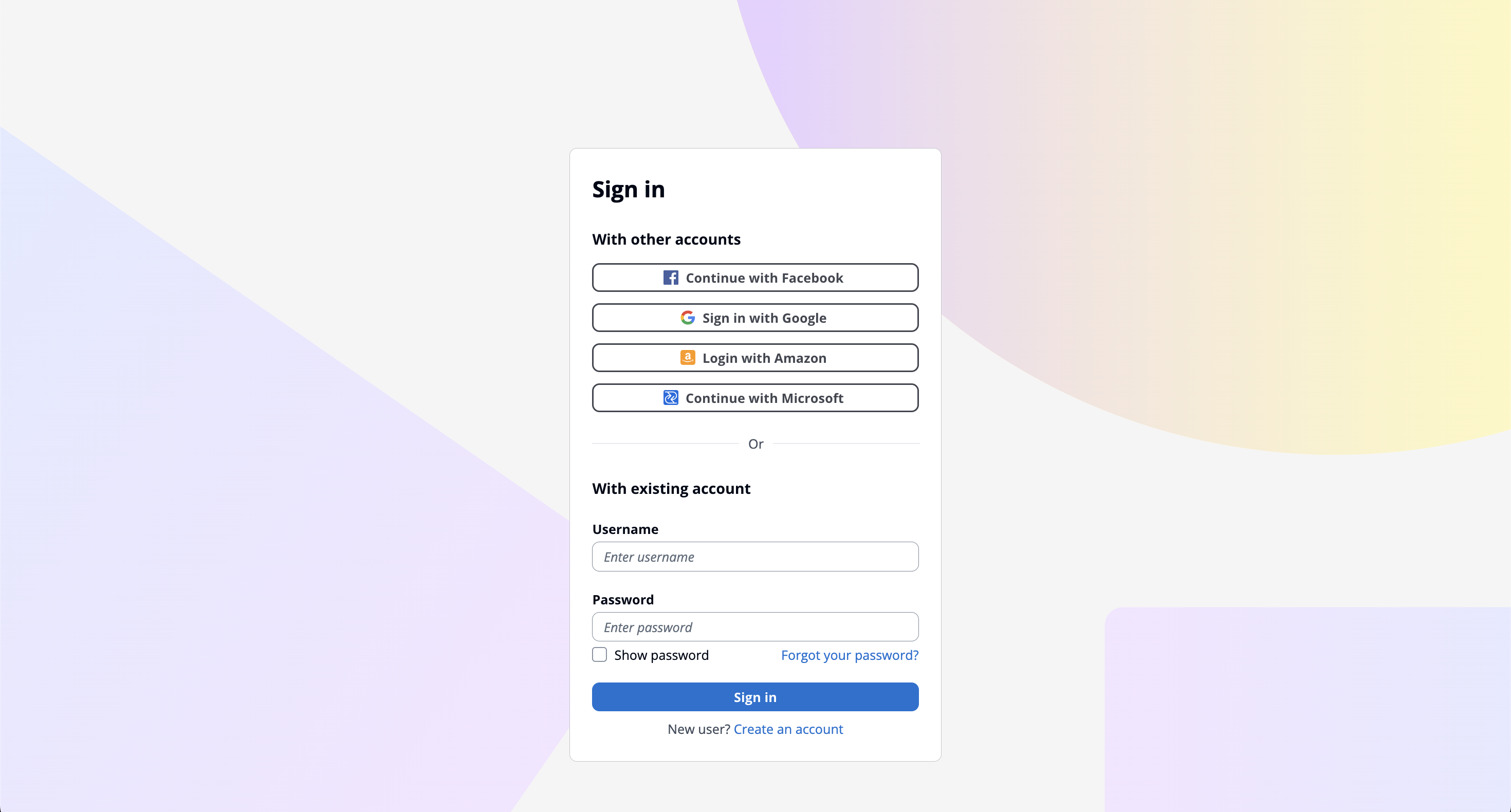
Sign in with your FinancialReports account.
You will be redirected to the FinancialReports sign-in page. Use the same credentials you use on financialreports.eu. Email/password works, as do Google, Microsoft, Facebook, and Amazon.
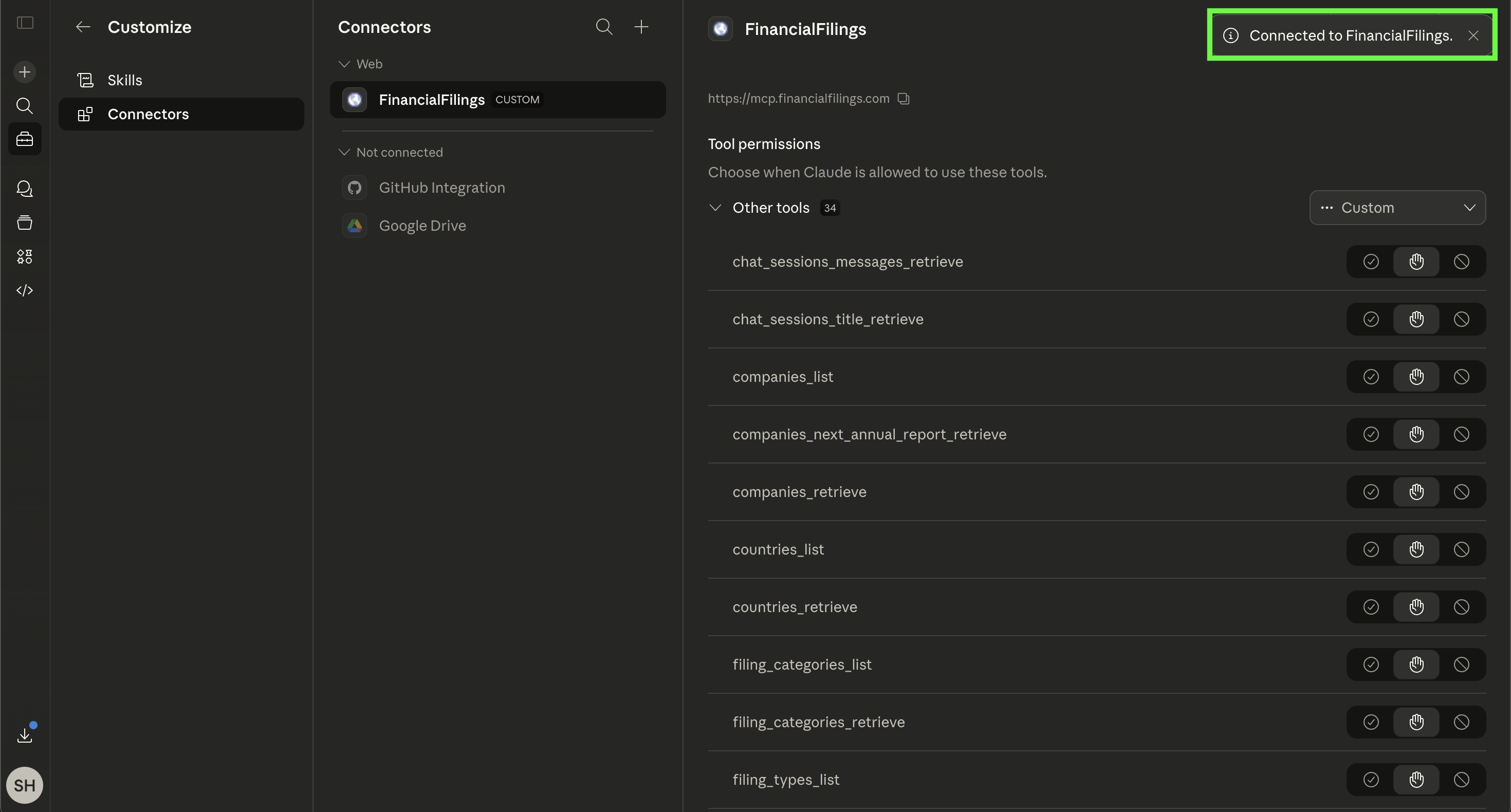
Connector active.
After signing in, Claude reopens with the connector marked active and the available tools listed. Ask Claude to search for companies, retrieve filings, or pull Markdown — all served by the FinancialReports API.
What to ask once it is wired up.
Claude routes these prompts through the FinancialReports tools and presents the result inline.
When something does not connect.
- Server URL is rejected, or authentication fails immediately
- The URL must end in
/mcp. Remove the connector and re-add withhttps://mcp.financialfilings.com/mcp. - Connector shows "Not connected" after adding
- Click on the connector in the list, then hit the Connect button to start the authentication flow.
- A tool call returns an upgrade message
- The MCP server requires an active Analyst or Enterprise subscription. Upgrade your plan → Access is granted immediately, no reconnection required.
- Authentication fails on the sign-in page
- Use the same credentials as on financialreports.eu. No account yet? View plans →
- Tools not showing up
- Refresh the page. If the issue persists, remove the connector and add it again.
- Need help
- Email [email protected].
Filings inside Claude. One connector.
An Analyst or Enterprise subscription unlocks the MCP server for Claude. Same index, same data, callable from your conversation.
Other MCP integrations.
Same server URL, different host application.
ChatGPT
Custom MCP app via Settings → Apps → Advanced settings. Plus, Business, or Enterprise plan required.
See the ChatGPT setup guide → Anthropic · CLIClaude Code
One claude mcp add command. The agent has the index in-tool while you build.
Looking for the API directly? View the API docs ↗