Step 01
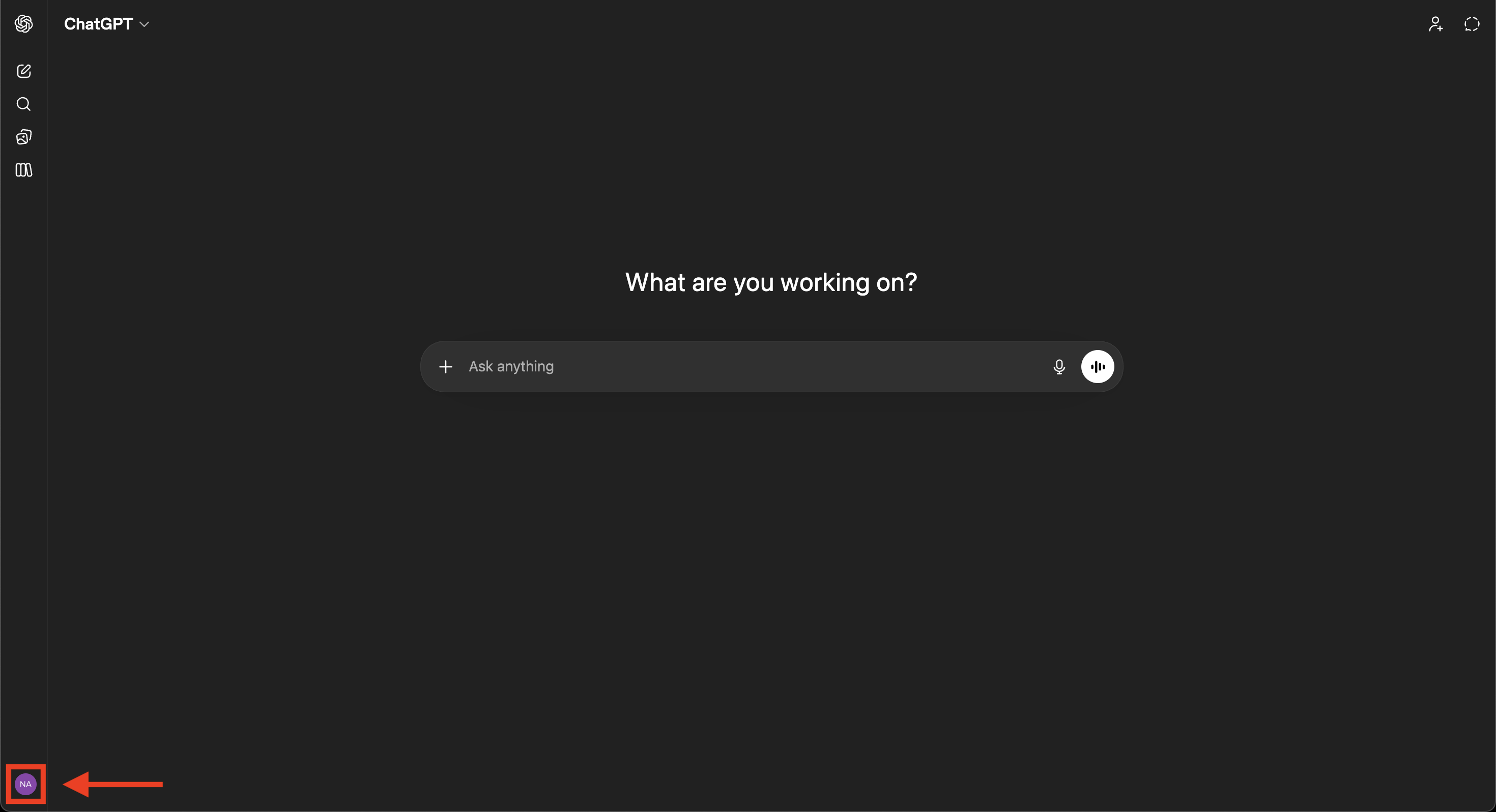
Open the account menu.
Go to chatgpt.com and sign in. Click your profile icon in the bottom-left corner of the sidebar.
21,000,000+ filings, 46,000+ companies, 48 markets — callable inside ChatGPT via MCP. Setup takes under 3 minutes.
https://mcp.financialfilings.com/mcp
The URL must end in /mcp. Copy the box above to guarantee the format.
ChatGPT currently requires Developer mode to be enabled before you can add any custom MCP app. This is an OpenAI platform requirement — not specific to FinancialReports — and applies to every third-party MCP server.
The FinancialReports MCP server is a read-only data source: it returns filings, company data, and search results. It cannot modify or delete anything in your ChatGPT account. Note that enabling Developer mode disables ChatGPT's memory feature while it's on.
From an empty ChatGPT settings panel to FinancialReports listed under Enabled apps. Buttons named exactly as ChatGPT names them.
Go to chatgpt.com and sign in. Click your profile icon in the bottom-left corner of the sidebar.
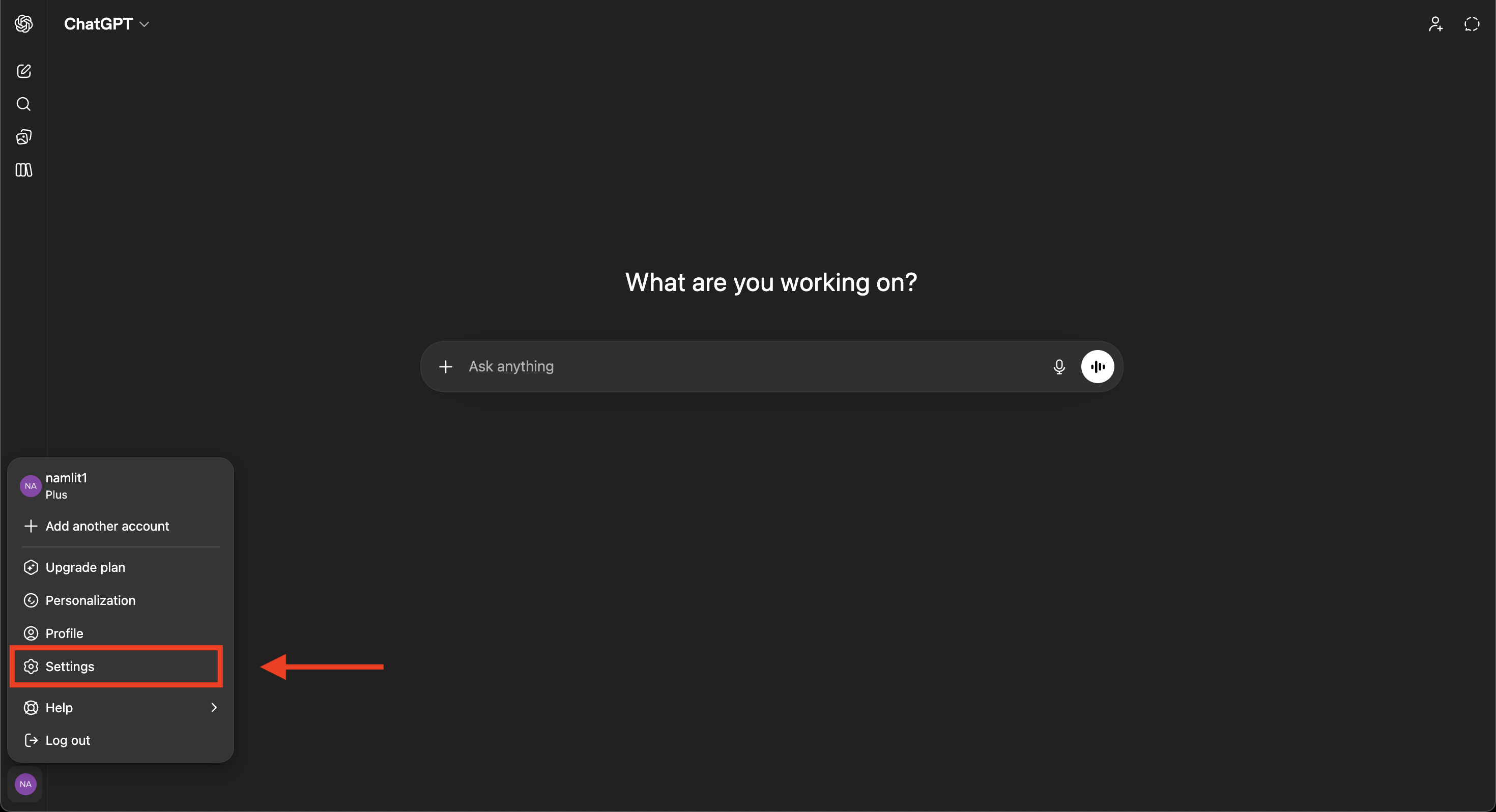
In the menu that pops up, click Settings.
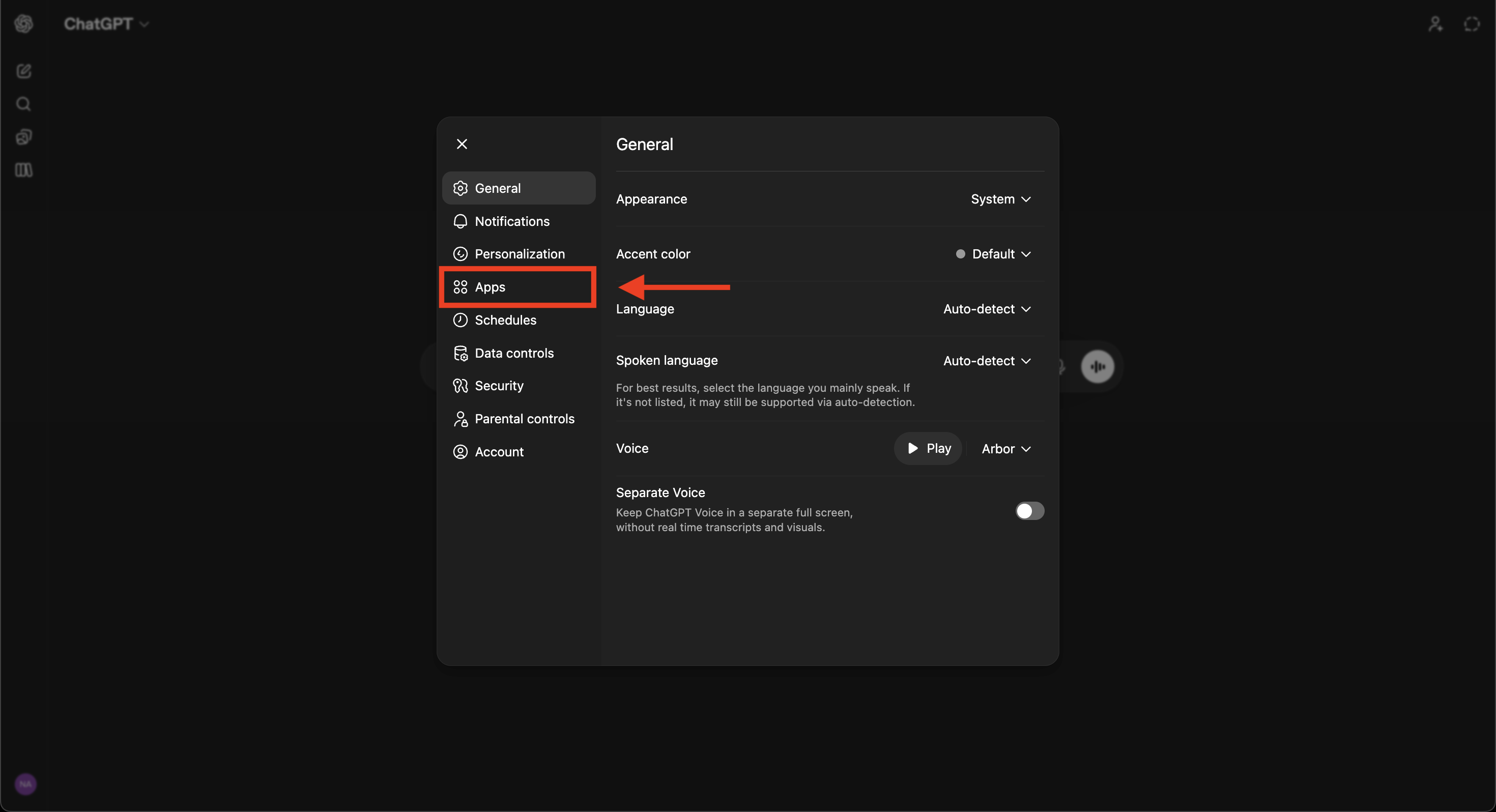
In the Settings dialog, click Apps in the left sidebar. (OpenAI recently renamed "Connectors" to "Apps".)
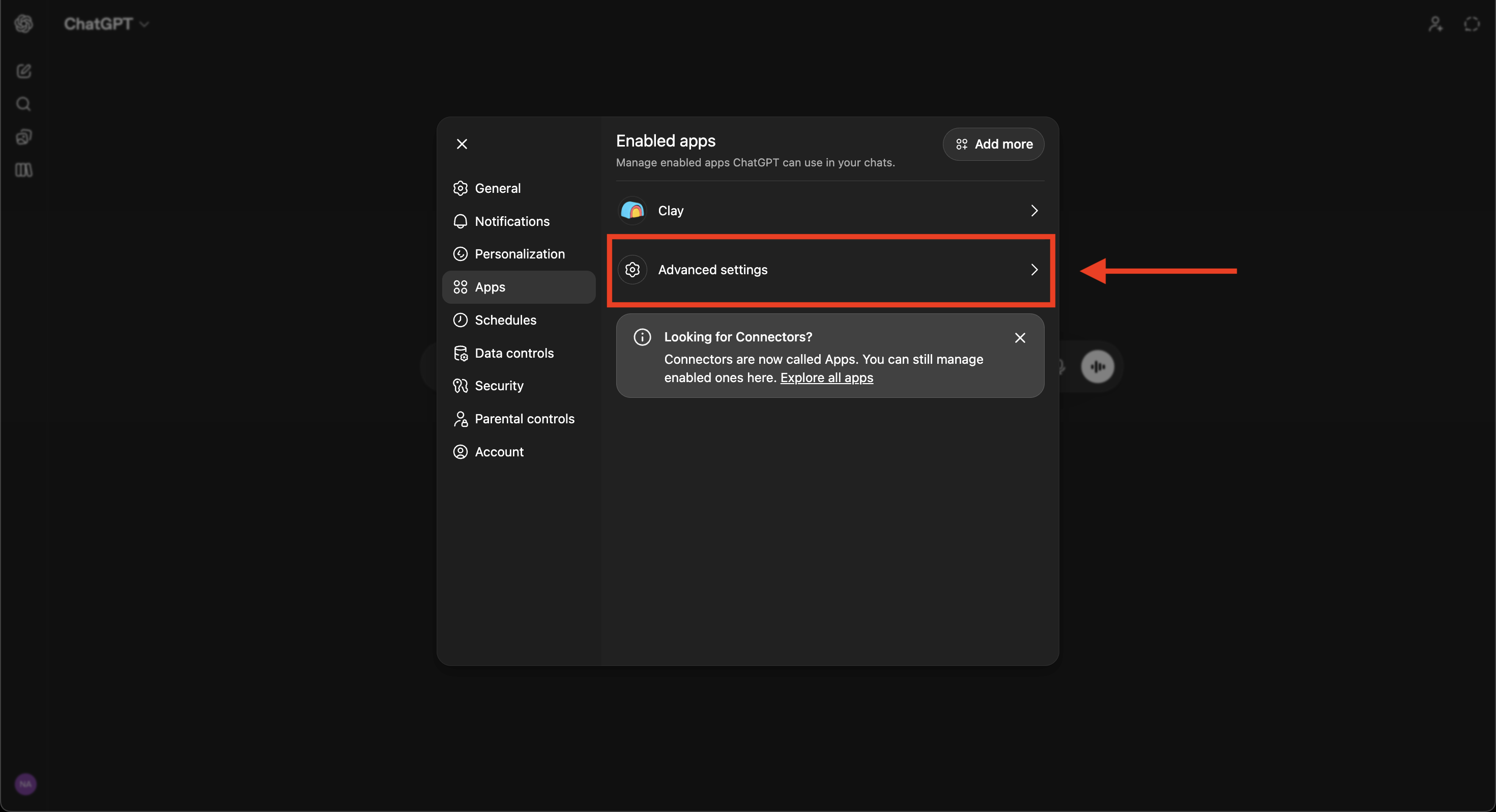
On the Apps panel, click Advanced settings.
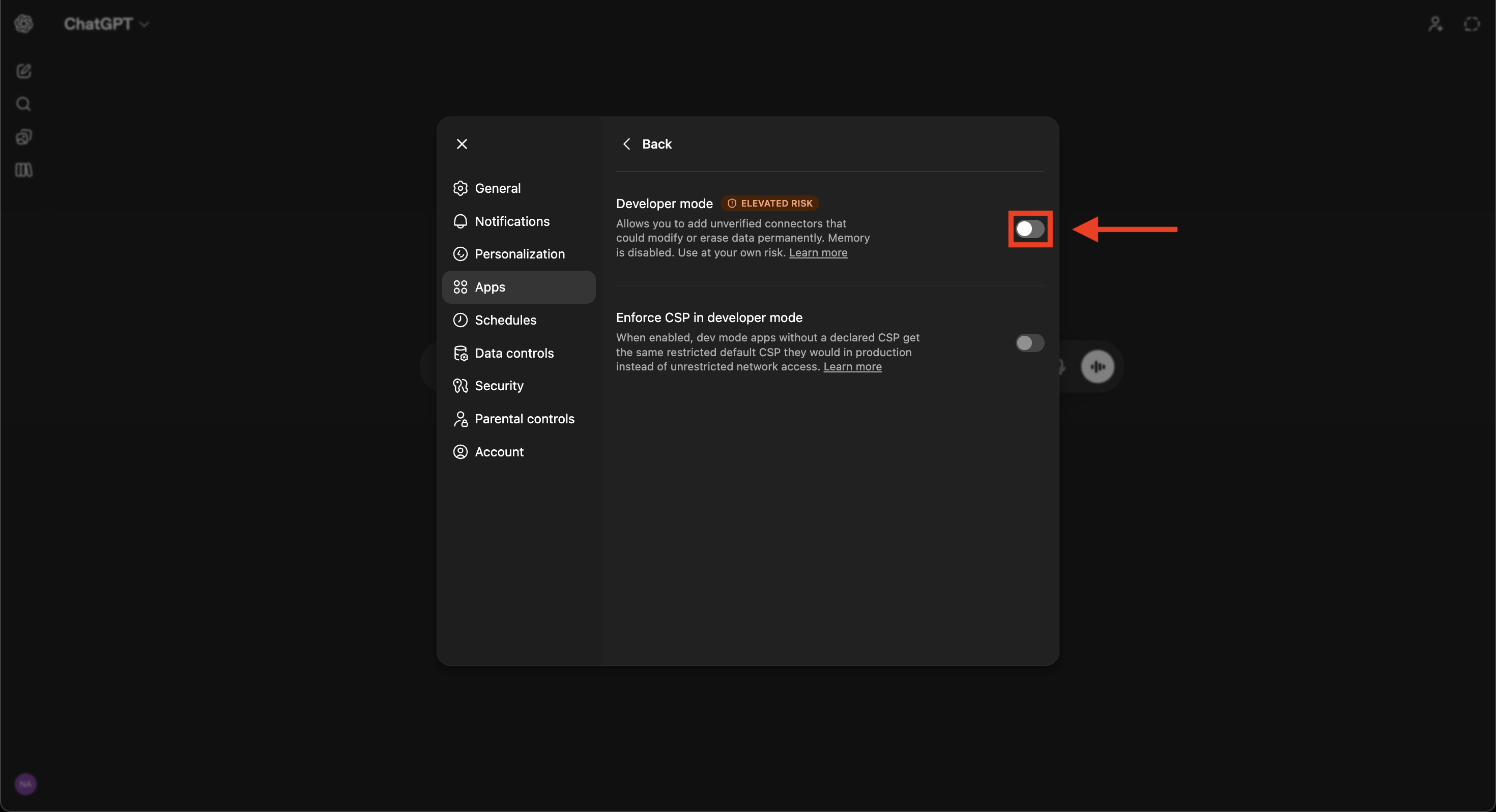
Toggle Developer mode on. See the note above if you're unsure why this is required.
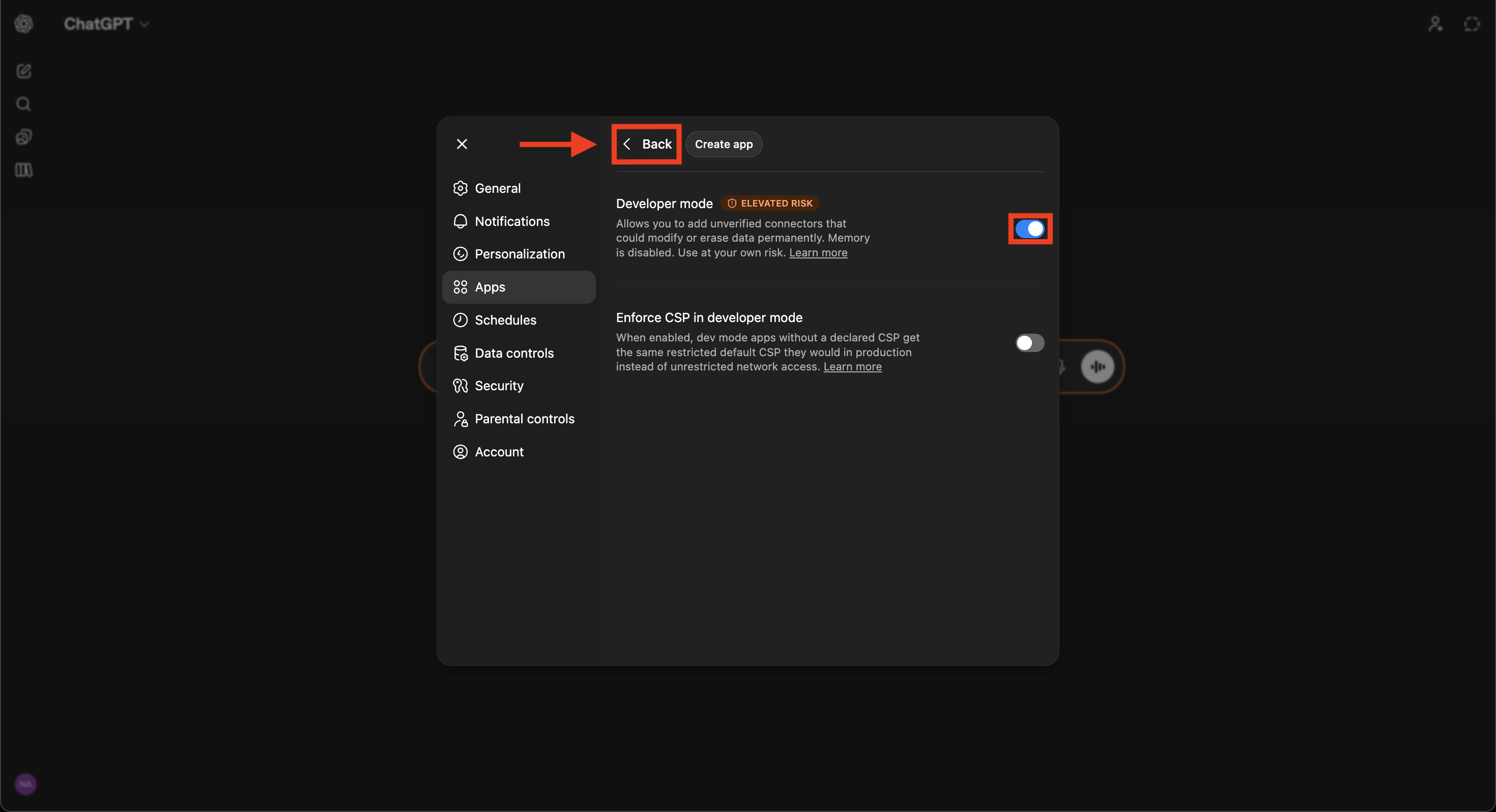
With Developer mode now enabled, click Back in the top-left of the dialog to return to the Apps panel.
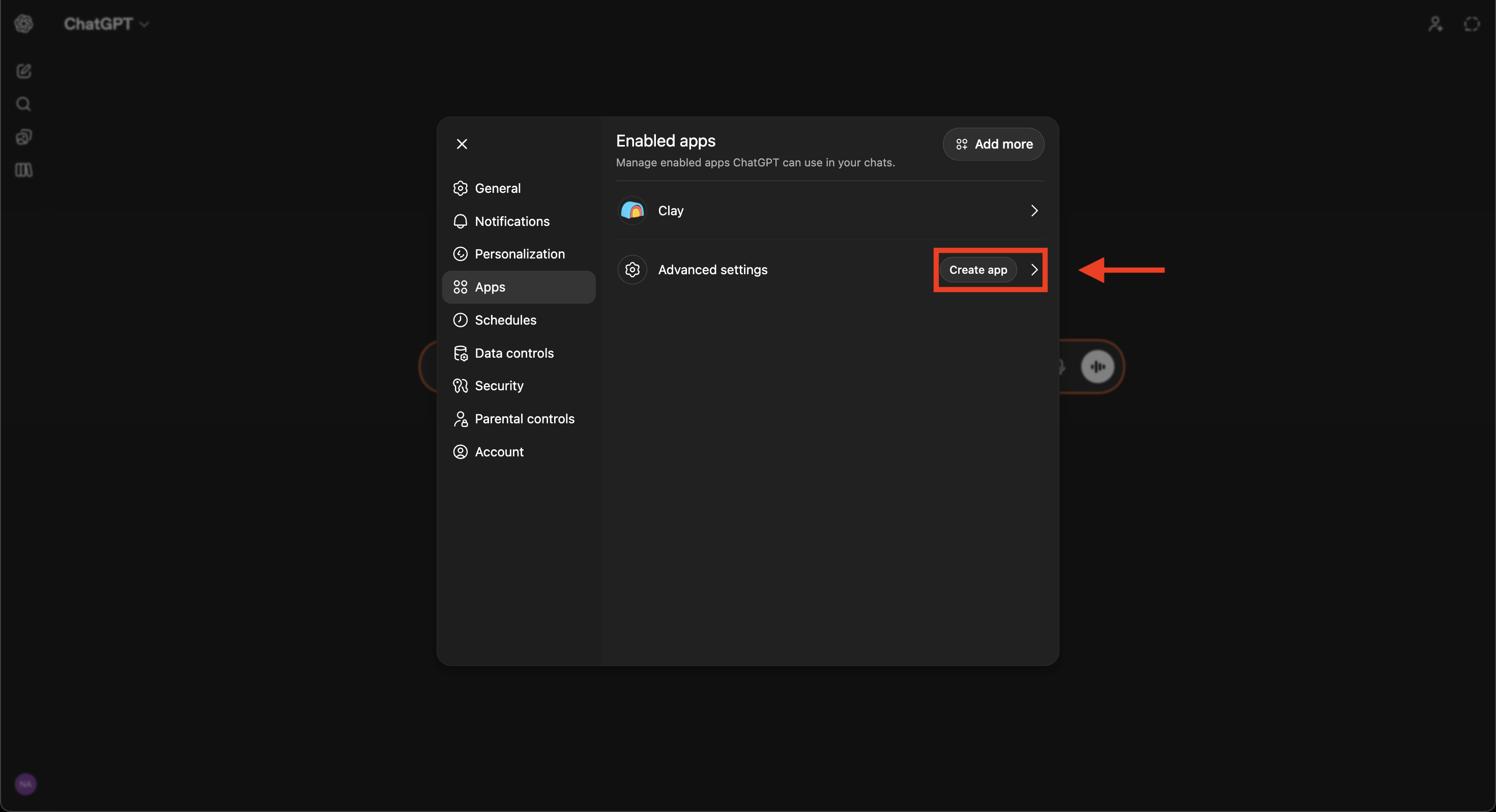
A new Create app button now appears next to Advanced settings. Click it.
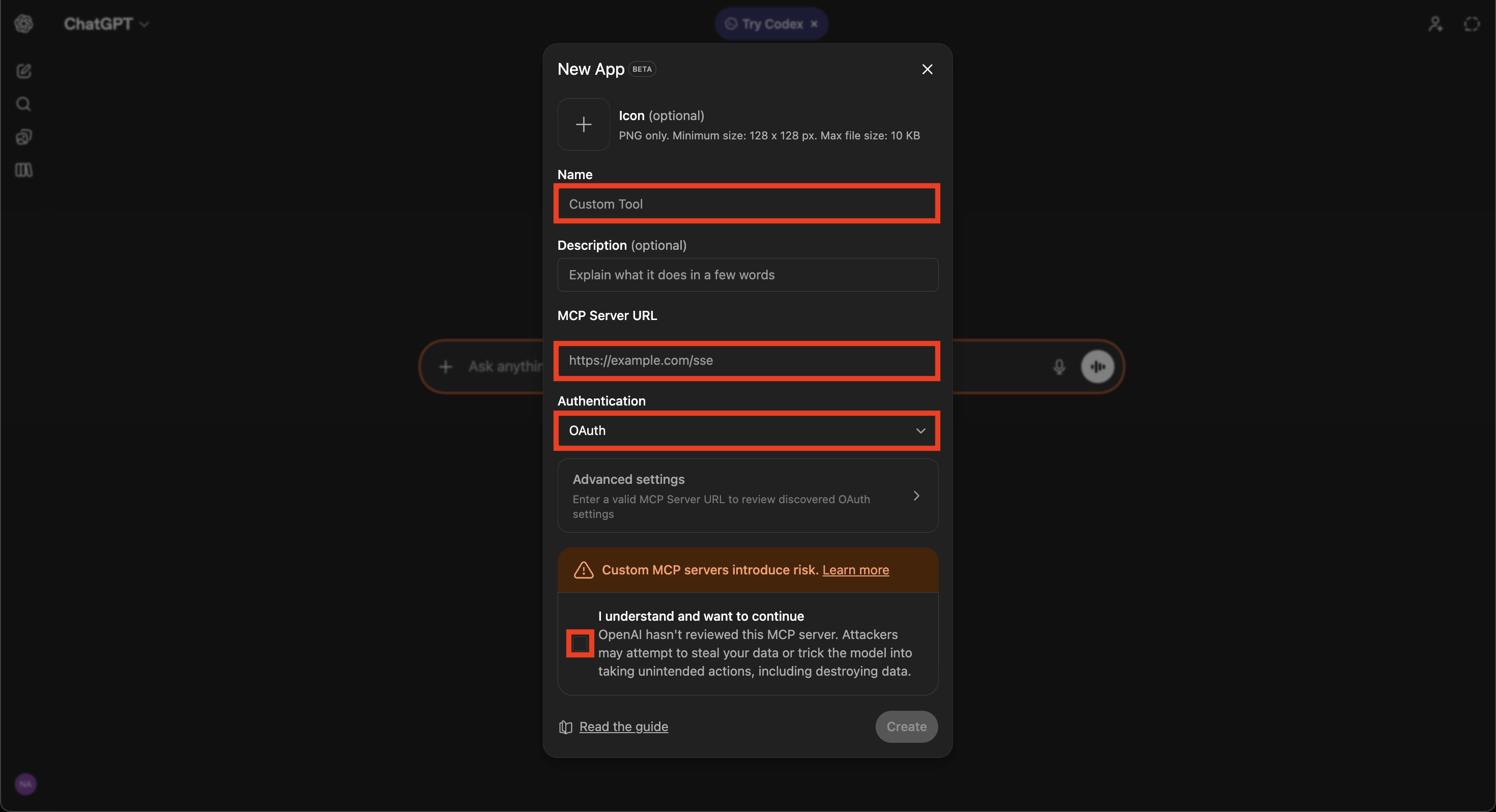
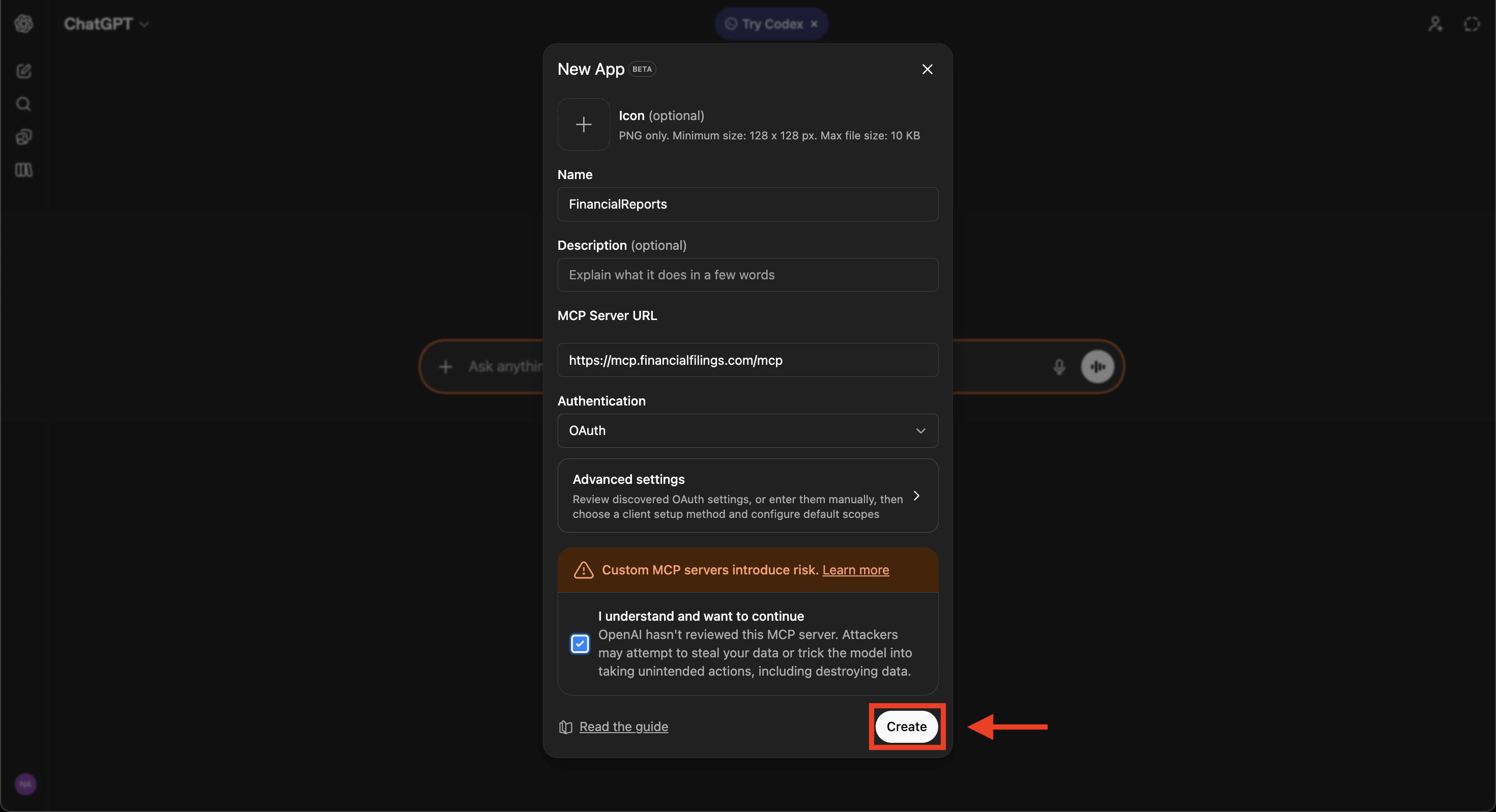
In the New App dialog, fill in the following fields:
Make sure the URL ends in /mcp — without it, ChatGPT won't be able to connect.
Click Create to continue.
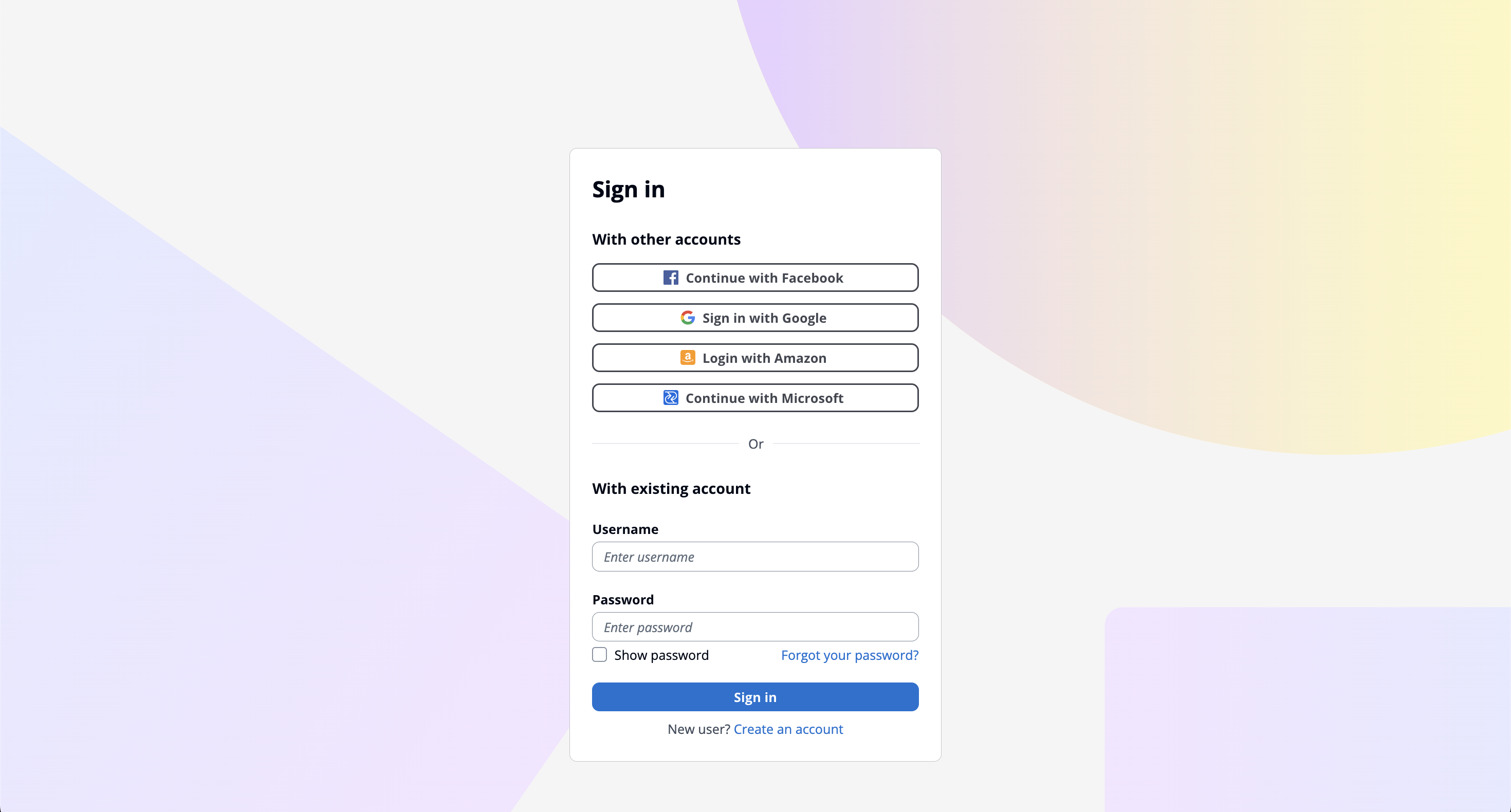
You'll be redirected to the FinancialReports sign-in page. Use the same credentials you use on financialreports.eu. Email/password or social sign-in via Google, Microsoft, Facebook, or Amazon all work.
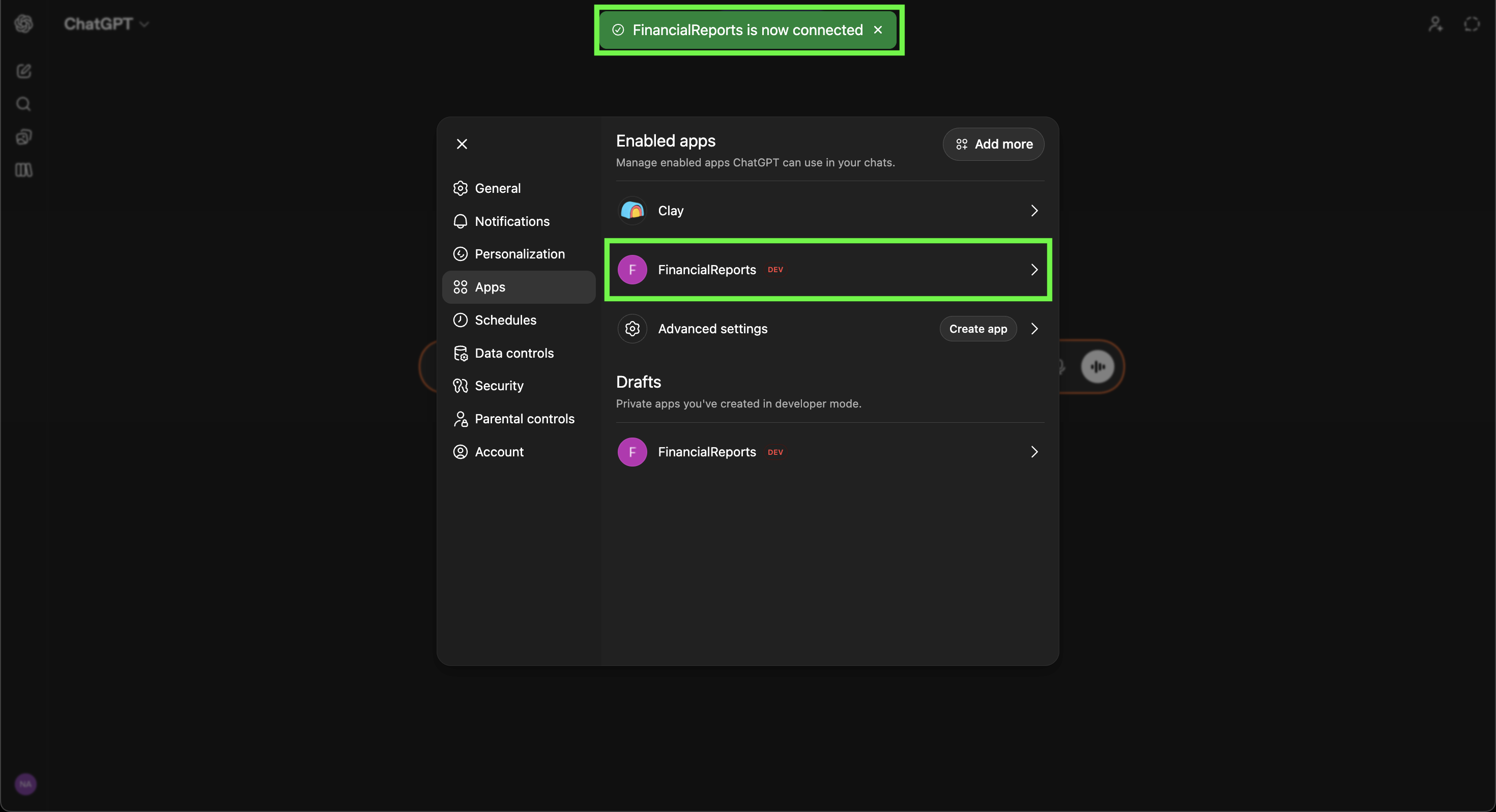
After signing in, you're redirected back to ChatGPT with a "FinancialReports is now connected" confirmation. The app appears under Enabled apps and is ready to use in any new conversation.
With the app active, ChatGPT calls the FinancialReports tools automatically when a prompt needs filings, companies, or KPIs. In some chats you may need to mention the app by name to trigger it.
"Show me the latest annual reports from Adidas"
"Find all German companies in the automotive sector"
"Get the markdown content of filing #12345"
"Which filing types are available for companies in France?"
The five things that go wrong, in the order they go wrong.
/mcp. Delete the app and recreate it with https://mcp.financialfilings.com/mcp.
Same MCP server, same OAuth, same tools across every compliant client. The API key unlocks the same index for direct calls.
Same server URL, different host application.
Custom connector via Settings → Connectors. Pro, Team, or Enterprise plan required.
See the Claude setup guide → Anthropic · CLIOne claude mcp add command. The agent has the index in-tool while you build.
Looking for the API directly? View the API docs ↗